
Mail filtering
The university’s mail filter is now Microsoft Defender for Office 365. This has replaced the Cisco IronPort system. Microsoft Defender will give us enhanced protection against phishing, malicious links and attachments, as well as better integration with other Microsoft 365 products.
If Defender identifies that an email could be spam or a threat, the message will either be put in your Junk Email folder in Outlook or be held in quarantine before reaching your inbox, depending on the assessed risk. How emails are assessed is determined by many different factors, and occasionally, the system will miscalculate a risk and so incorrectly categorise an email. Both areas need to be checked regularly to move or release these emails - when you do this, the system should “learn” not to do this in the future.
Every user has a Junk Email folder which should be checked regularly. Right-clicking on an email and choosing “Junk” gives you options on how to deal with the email or the sender. You can select an action immediately or look in more detail with “Junk E-mail Options”.
Clean Emails
If you see a “clean” email (i.e. an email that is not spam or harmful) in the folder, you can mark it “not junk” by right-clicking on the email:
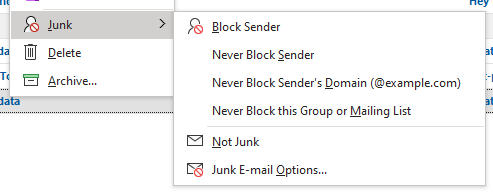
This will allow you to move it into your Inbox, and also add the sender’s address to “always be trusted”. This will put the address in a “Safe senders” list. Selecting “Never Block Sender” will also add this to your “Safe Senders” list. You can edit your “Safe senders” list in “Junk E-mail Options”.
Blocking Senders
If you particularly want to block a sender or domain, this will put the details in a “Blocked Senders” list. This can also be edited in “Junk E-mail Options”.
If Defender assesses an email to be more dangerous than the Junk Email level, but still possibly OK, it will put it into quarantine. When you have emails in quarantine, you will receive a spam quarantine notification email from quarantine@messaging.microsoft.com with the subject “Microsoft 365 security: You have messages in quarantine “. You can then release any incorrectly marked emails if required. (This replaces the previous IronPort quarantine.)
More information on the new notifications can be found on the Microsoft site.
Reviewing and Releasing Emails
If you are absolutely sure an email is clean, you can release it to your Inbox directly from the quarantine email by selecting “Release”.
If in doubt, you should review the email: click on “Review Message” (this opens a web page showing your quarantine) and click on the message to review. This opens an information box – click on “…” and then “Preview Message”.
Should you wish to review what’s being held in quarantine at any time, you can access the new Defender quarantine portal (without having to wait for a notification) via the following link:
https://security.microsoft.com/quarantine.
Blocking Senders
To block a sender permanently so that emails will never reach your mailbox at all you can click “Block Sender” in the quarantine notification.
Mail filtering policies will be determined by DTS and may take a few weeks to find the right balance. If you are experiencing any substantial problems with mail filtering, please contact the IT Service Desk.