Copilot
Copilot is an AI-powered assistant, which you can access with your Microsoft Office 365 account. You can use it through the website, or you can open it within Microsoft Edge, by pressing on the Copilot icon  found in the top right corner. Copilot can also be found in other Microsoft Office applications.
You can use Copilot to support your study, with tasks such as:
- summarising articles and documents
- creating revision materials
- creating a PowerPoint slideshow
- uploading files to use with Copilot
SHU has some guidance available on the use of AI in your studies, found here
The Copilot panel
While in the Copilot window, you can resize the panel by long-pressing the left mouse button and dragging from the left-hand edge of the window.
You can also start a new chat by pressing on the  icon.
icon.
You can view previous chats by pressing on the  icon and selecting Conversations.
Summarising articles
When working within MS Edge, you can use Copilot to summarise a webpage. While on the webpage you want to work with, press on the Copilot icon to open the Copilot panel.
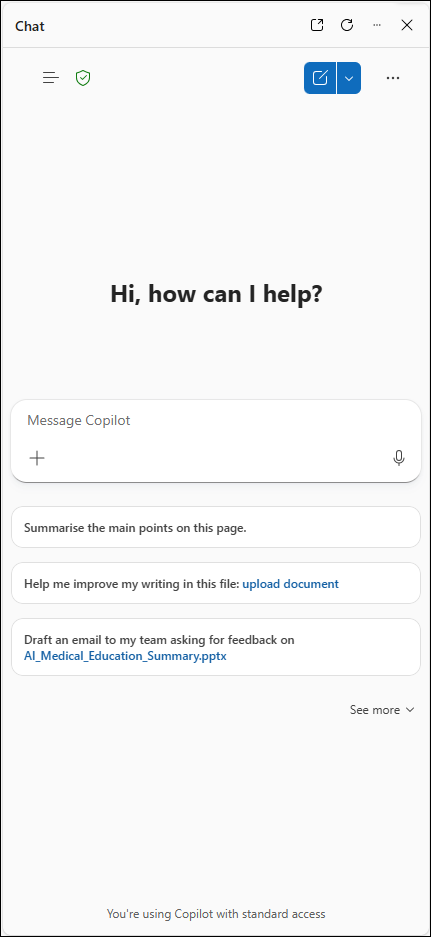
From here we can start a new chat by typing your query in the Message Copilot box.
In the Message Copilot box, we will put a query. For this example, we are working from this webpage.
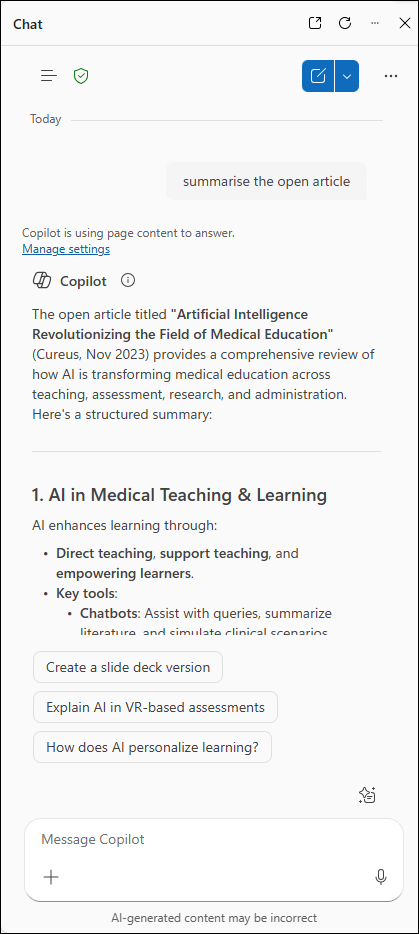
To get a summary of the open webpage or article, we can type ‘summarise the open article’ and then press the enter key.
Copilot will now produce a summary of the article, as shown in the image to the right. Copilot will break the summary down into sections and provide details as to what is covered in the article.
At the bottom of the Copilot panel, you will see some possible options for how you can continue to explore your query, as below -
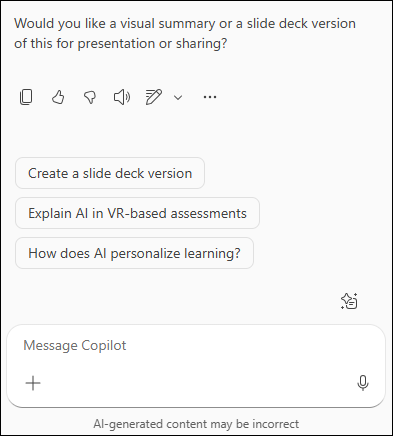
You can select any of the suggestions provided, or type your own follow up query into the chat box.
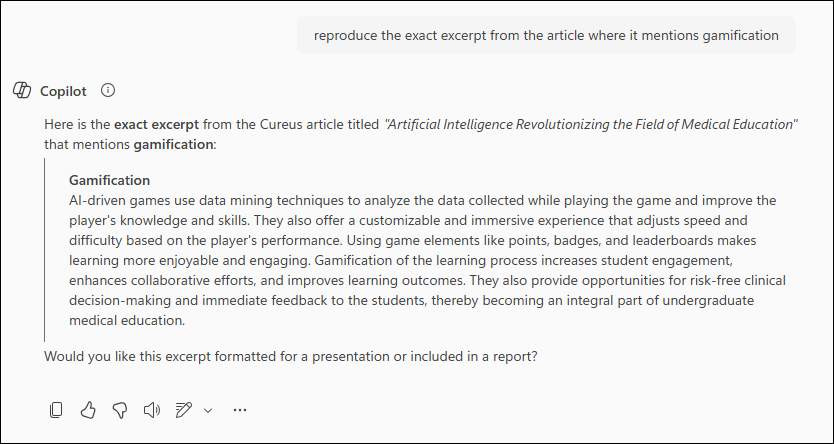
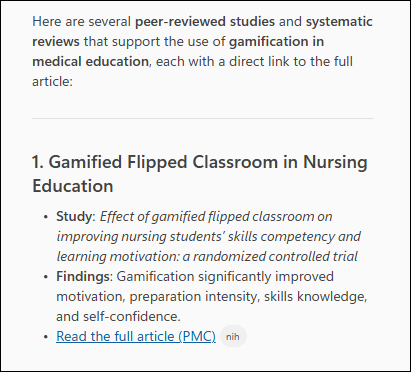
You can also use Copilot to search for further research around a topic. Again, using this example webpage and summary, we can ask Copilot ‘what additional research is there that supports the arguments for gamification. Provide links to each paper’
Copilot will produce a list of likely articles relevant to the query. As the query requested links to each paper, Copilot will present links to the full article for each finding, alongside a summary to help you decide if it will be relevant.
Revision materials
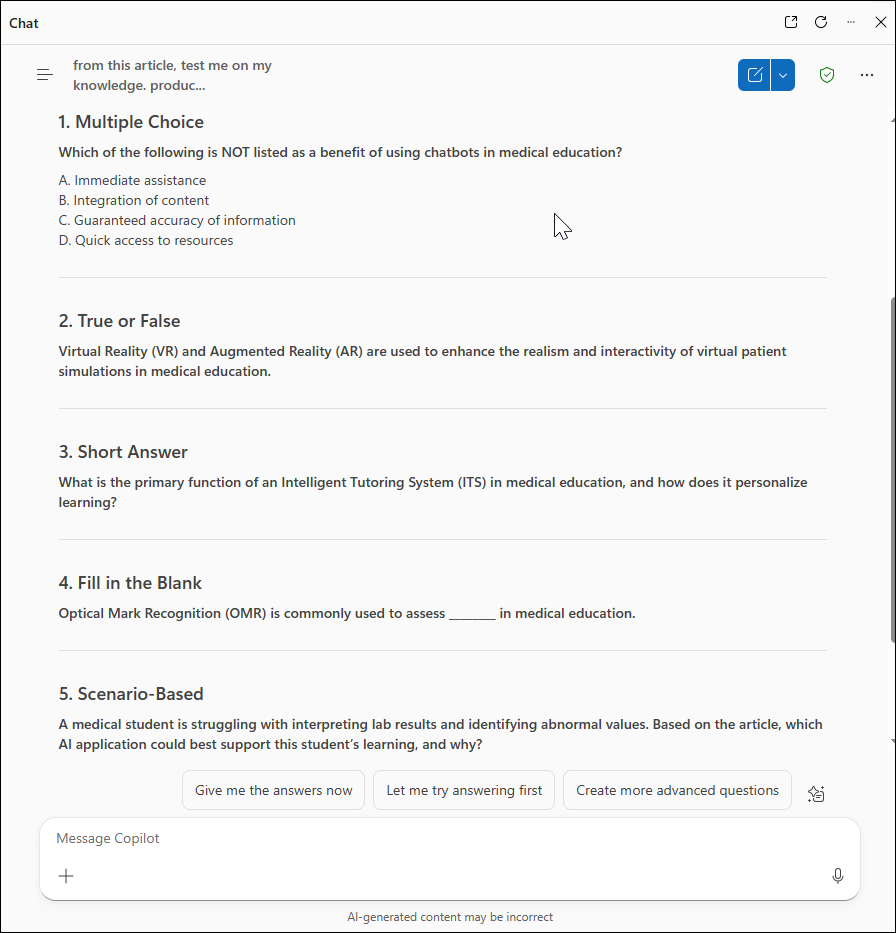
Using Copilot, we can create revision materials such as flash cards or quizzes. In this example we will use the same webpage, however we will create a new chat by pressing on the start new chat icon  . This can help with separating your chats, making previous queries easier to find.
With the webpage open, in Copilot we can type a prompt such as ‘from this article, test me on my knowledge. Produce a minimum of 5 questions’
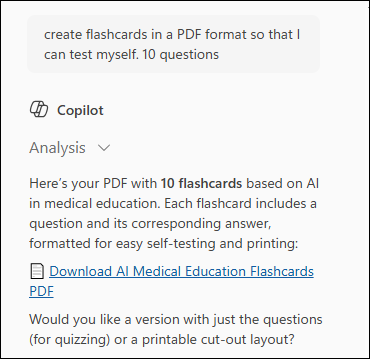
You can also use Copilot to create a series of flashcards. As a prompt, you can use ‘create flashcards in a PDF format so that I can test myself. 10 questions’. Copilot will create a PDF document containing the flashcard questions and answers.
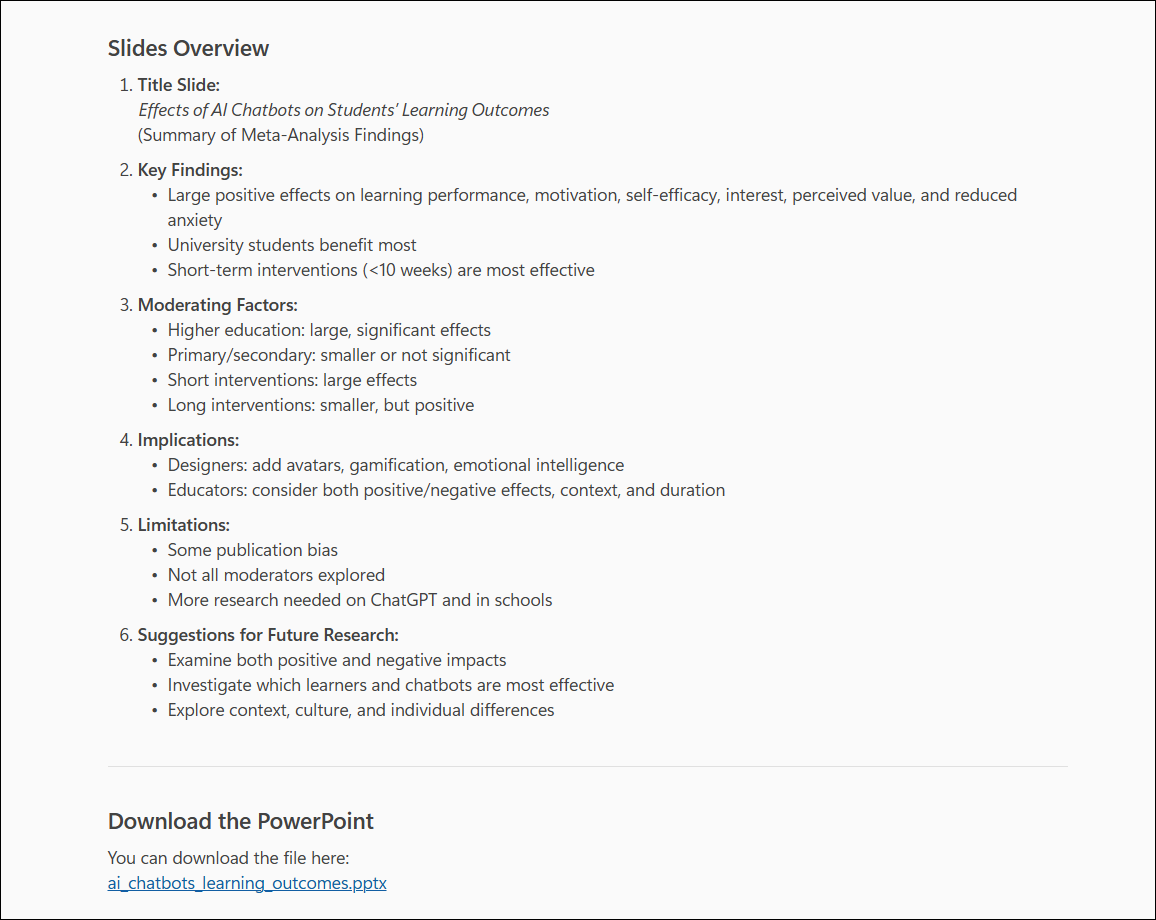
You will see a link to open the PDF. Depending on your query, you can also choose to create the flashcards in a PowerPoint format. Copilot will usually then provide follow up options, where you can change the layout or format of the questions.
Uploading files to Copilot
As well as asking Copilot to work with an open webpage, you can also upload files for it to work with.
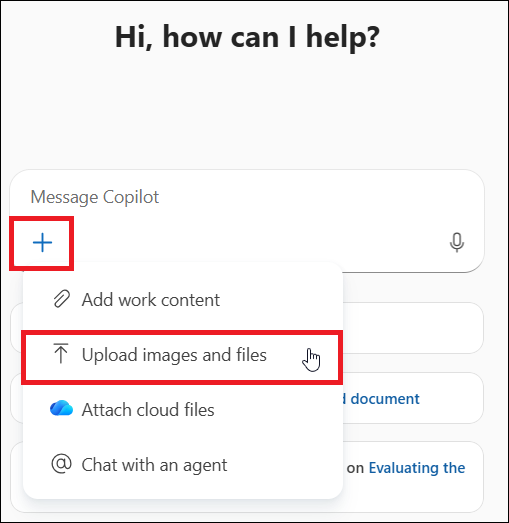
In the Copilot message box, press on the + symbol. From the menu that appears, select Upload images and files.
You can now browse to the document you want to upload into Copliot.