
Annotating a recording
Once you have started to record, you can annotate the recording using various tools that can highlight important sections. This can also help you to more easily locate sections to listen back to later when reviewing the recording. These include:
Adding a note
Labels
Further options menu
Images
Tasks
Definitions
Slide annotation
Screenshot tool (web app only)
You can find these tools in the annotation panel.

Note - While the guidance below focuses on using these tools through the mobile app, they are also available when using the web app, unless otherwise stated.
Adding a note
In the annotation panel, tap onto the area where is says Add text. You can now type notes that will be displayed in the notes feed. Type your note and then press on the arrow icon to post the note. All notes will be time stamped and linked to the audio.
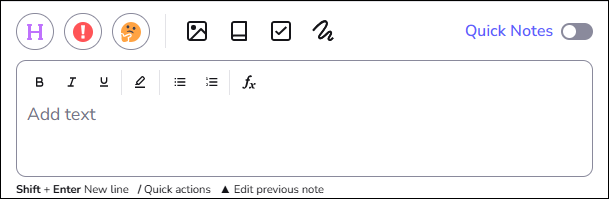
Across the top of the Add text box you will see basic formatting options for making text bold, italic or underlined. You can also change the font colour, add bullet points or numbering, along with indenting text left or right.
You can also insert a formula into your text notes by pressing on the fx icon.

Labels
You can add labels to highlight sections of the recording. These can used be to mark as:
 Important
 Review
 Heading
Below is an example of using the Important label. Press on the Important label to select, and then press the post arrow to add the label to your notes feed. You can add text to the label before posting it if you want to, however, you can go back to these later to add text when you playback the recording. Like notes, labels will also be time stamped.
Further options menu
If you press on the three dots button you will open a menu that shows additional annotation options. These are -
Camera - Take a photo to add into your notes feed (only available on the mobile app)
Image - Import an image into your notes feed
Definition - Download a definition for a word from Wikipedia
Task - Add a task to complete with optional deadline date
Scribble - Draw something to add into the notes feed
You can also enable Quick Notes via the toggle switch. With Quick Notes enabled, you will not be able to type notes however you will be able to add labels with one press to make this process quicker.
If you are in the web app and are working full screen on a laptop, the three dot menu won't be present. Instead, you will see these options in the annotation toolbar, represented by icons -
Tasks
You can create tasks at any point within a recording. Sometimes it can be helpful to highlight part of a lecture when an assignment is discussed or explained. Tasks can also be used to set yourself reminders relating to part a lecture. Tasks are timestamped and there is also a tick box that you can use when the task is completed. All tasks across all recordings are listed under the Task tab on the homepage of the mobile and web application.
To add a new task, press on the three dots menu and press on Task. You can then type in the task name, and you also have the option to set a due date if you want to create a deadline for the task. Press on the post arrow to add the task into your notes feed.
Slide annotation
You can annotate or draw on top of any slides that have been added into your recording, in both the mobile and web app. To begin annotating a slide, press on the slide you wish to annotate. A toolbar will appear across the bottom of the slide, use these tools to add to or mark out sections on the slide.
You also have an option to search slides for a keyword. When you press on the slide to bring up the toolbar, towards the top right corner of the slide you will see a magnifying glass. Use this to search for a word.
Screenshot tool (web app only)
You can use the Screenshot tool to capture images while recording online content through the web app. Please note that this icon is only shown during a recording.

This can be useful to capture screenshots of slides if you do not have them prior to a lecture, or to capture other still image content that is being delivered. Just press on the Screenshot icon to capture the image which will be posted to the notes feed.