Recording an online lecture

You can record online lectures with a Chrome extension
Or
You can record online lectures with the Web app (see below) 

Web app

You can use the web app to record online teaching sessions. Create a New Event from the Home or Collections screen. Before you start recording the event (teaching session), you need to name it.

text box showing where to name a new event
button showing for importing slides


If you have the PowerPoint slides for the lecture ready, these can now be imported into the event. As well as PowerPoint slides, you can also import PDF files into Genio.

screenshot showing imported slides

You are now ready to start recording, but first you need to select the recording source.

menu showing recording options

For recording online teaching sessions select Audio under the Remote section. To capture both online events and any sounds in the physical location you are in, choose Audio & Mic.

Choose Microphone to only record sounds from the physical location you are in.

Once you have selected Audio for an online teaching session, you then need to specify the location of the recording.

For live teaching and pre-recorded sessions make sure the lecture platform (e.g. MS Teams, Blackboard Collaborate) is launched in Chrome and select the Chrome Tab option. You then need to select the specific tab from the list provided.

Click the Share button.

pop up box showing recording source options for online recording


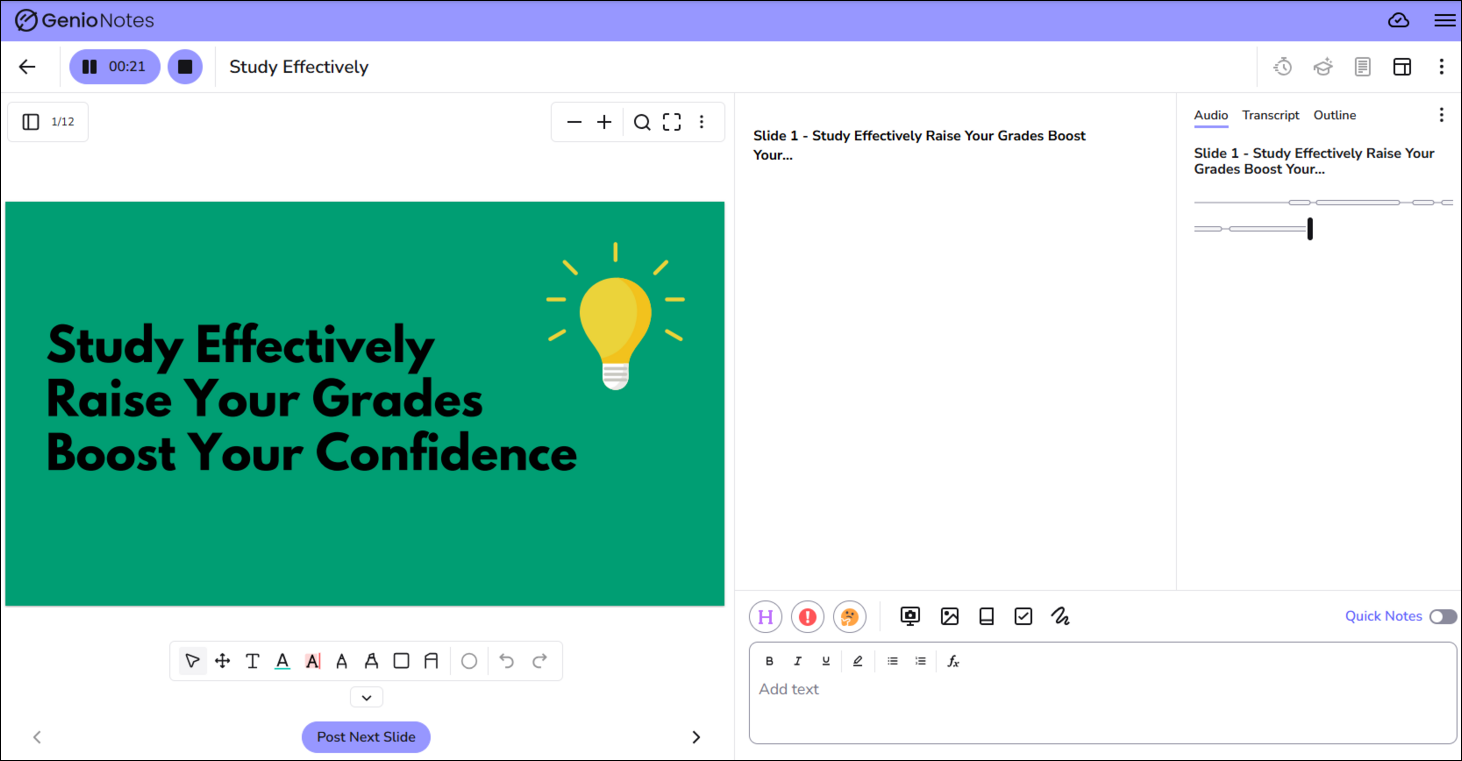
Genio will then begin recording the audio coming from the selected online teaching session.

image showing a recording from an online source in progress
Guide on how to record a lecture hosted on MS Teams to Genio
Next section: Annotate a recording