
Recording with a browser extension
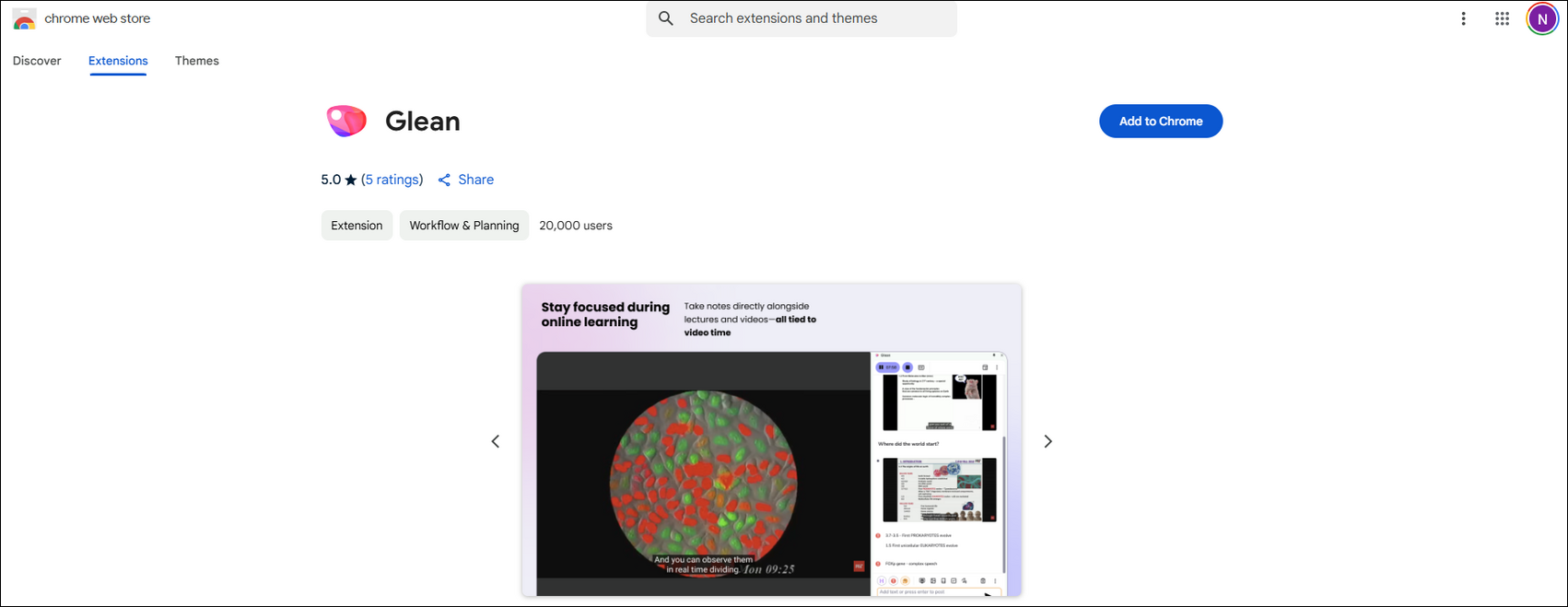
You can then choose to 'pin' the extension to your extension bar so it is permanently on display. Click on the jigsaw icon to view all current extensions. You can then choose to pin them to the main bar. This is the Genio Notes extension.

Click on the Genio extension icon to open the Genio side panel. You may need to sign in (or click on the ‘Use Genio in this tab’ button in the panel if you are already signed in to the Genio web app in another tab).
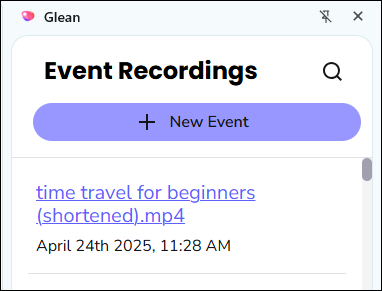
You will then be taken to the homepage, where you can see and access all of your existing recordings. From here, you can start a new recording by clicking on the ‘New Event’ button.

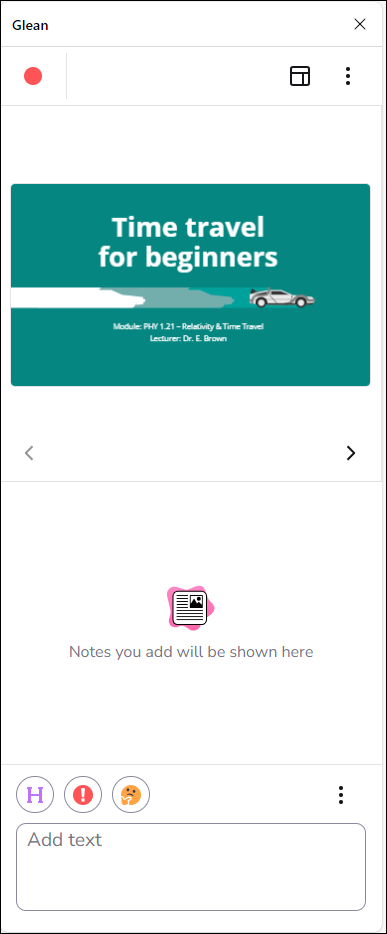
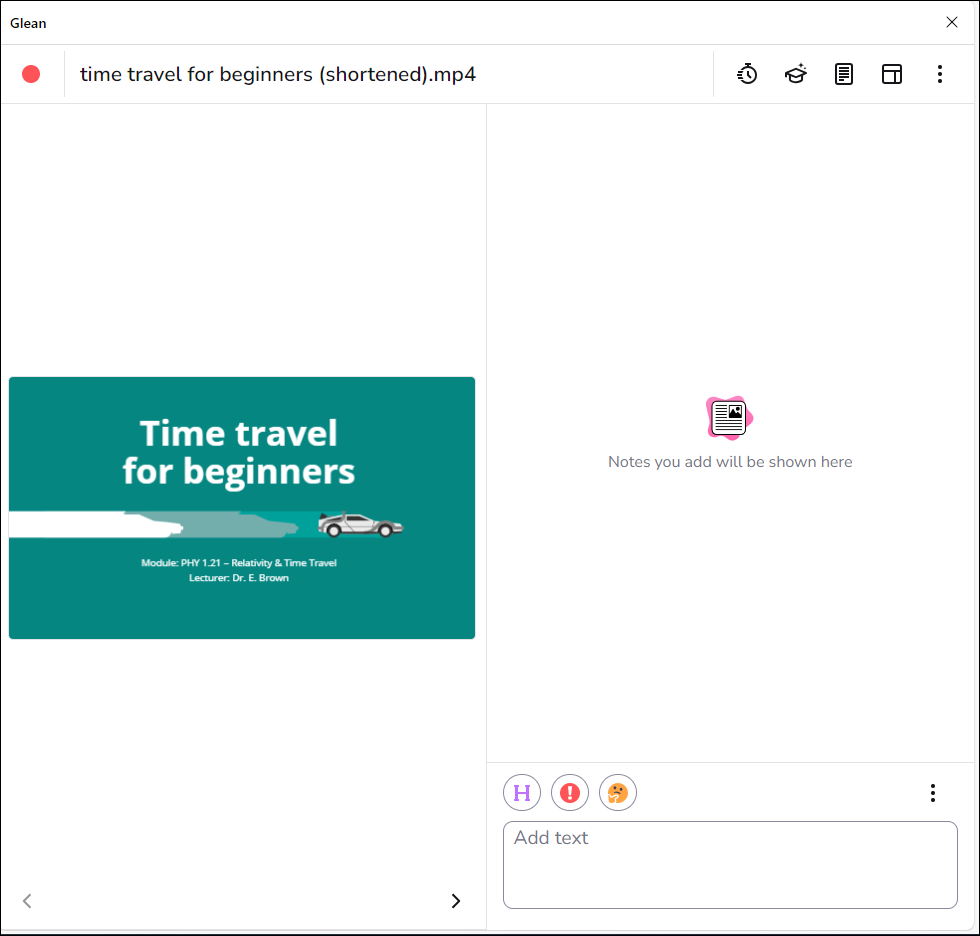
By clicking on the record button you can then choose what you want to record. Be aware the screen audio will only record what is currently open in your web browser.
Once you are recording you will then be able to annotate in the same way as the web application. See here for more guidance on annotation.
