Read back text in webpages

Microsoft Edge

Microsoft Edge is the default web browser for Windows 10. If you're a Mac user, you can also download Microsoft Edge.

It is based on the same technology as Google Chrome, but has a lot more features.


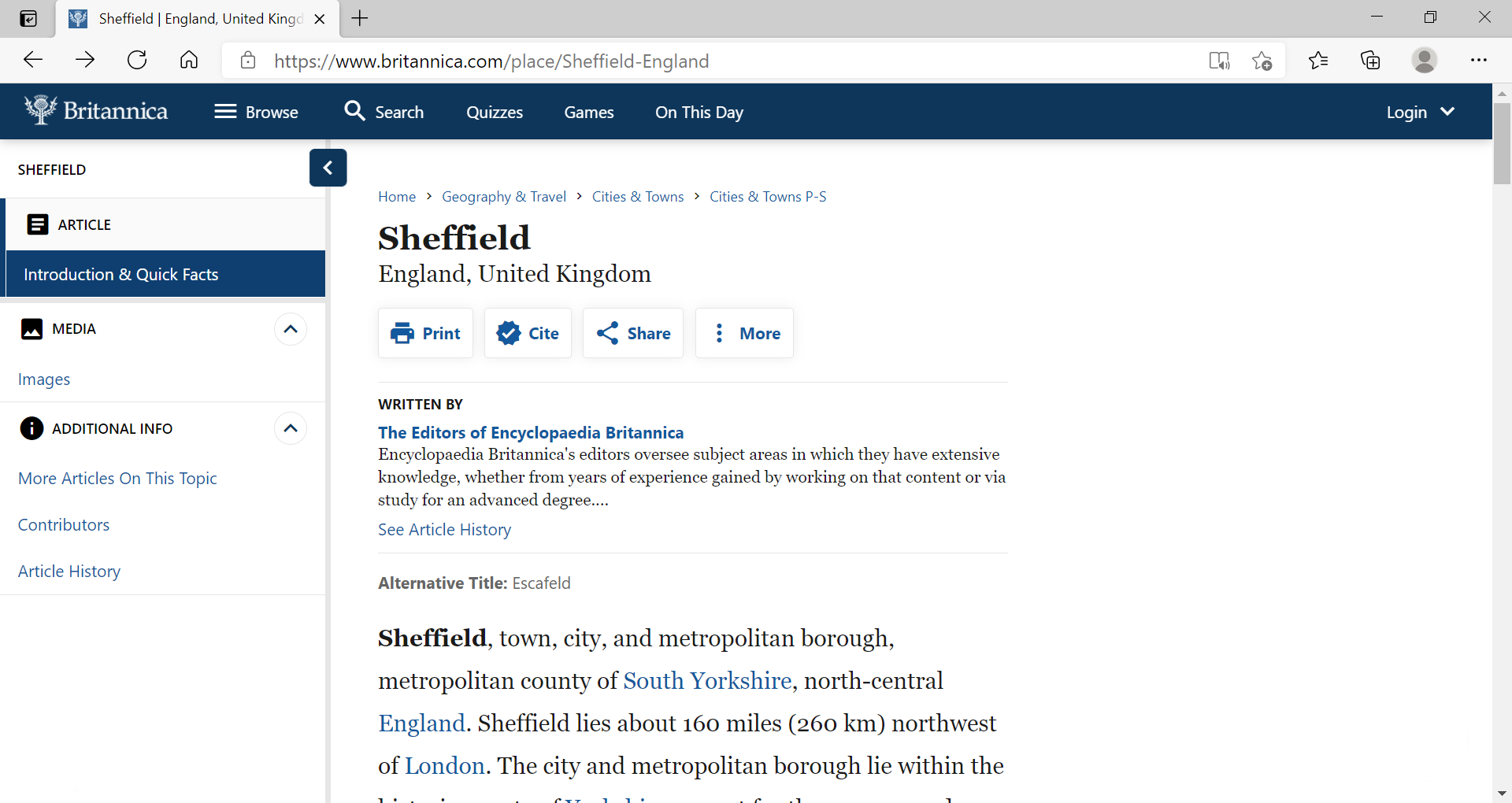
Britannica webpage on the history of Sheffield

Using Immersive Reader

To access text-to-speech in Microsoft Edge you need to firstly load the page that you wish to have read back. The More actions icon should now be available in the address bar.  Click on this to access the Immersive Reader and Read aloud tools:

The read aloud icon in Edge next to the address bar highlighted with a red box. The icon is a book with a speak in front of it

Select Immersive Reader or press the F9 key. The page will now reload in Immersive Reader.

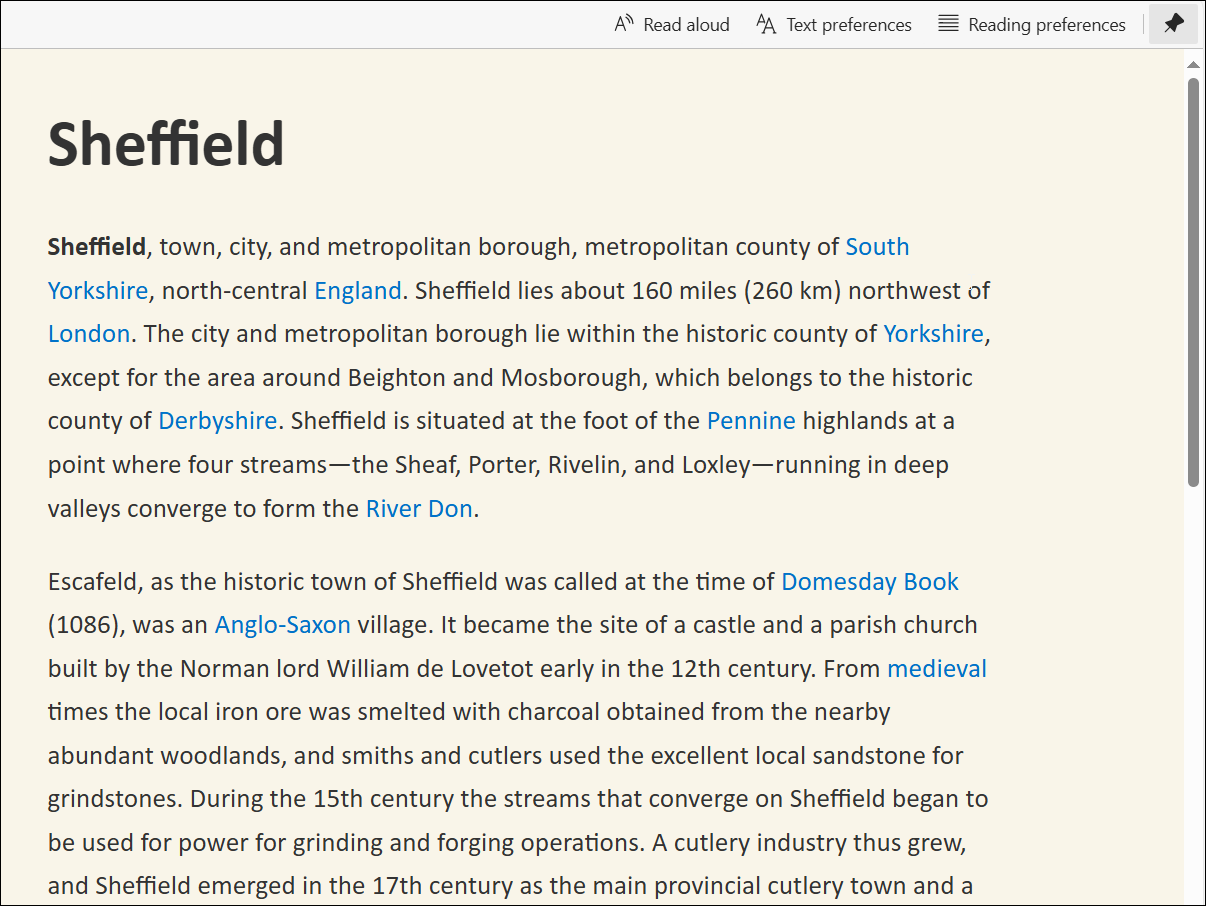
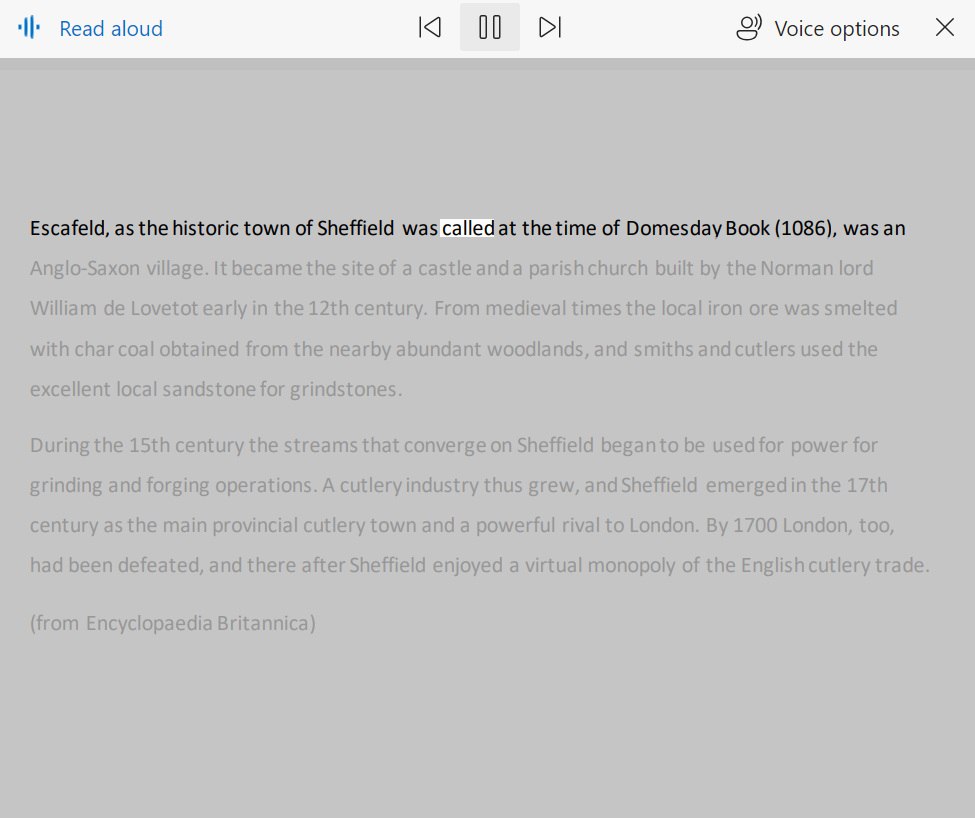
Britannica Sheffield history page displayed in the Edge immersive reader

The web page has now reloaded with only the main article visible. The text is larger, and the column is thinner than the original web page.

The Immersive Reader toolbar is automatically pinned to the top of the view.

If you want to hide the toolbar click on the pin icon.

Pin icon, Immersive Reader

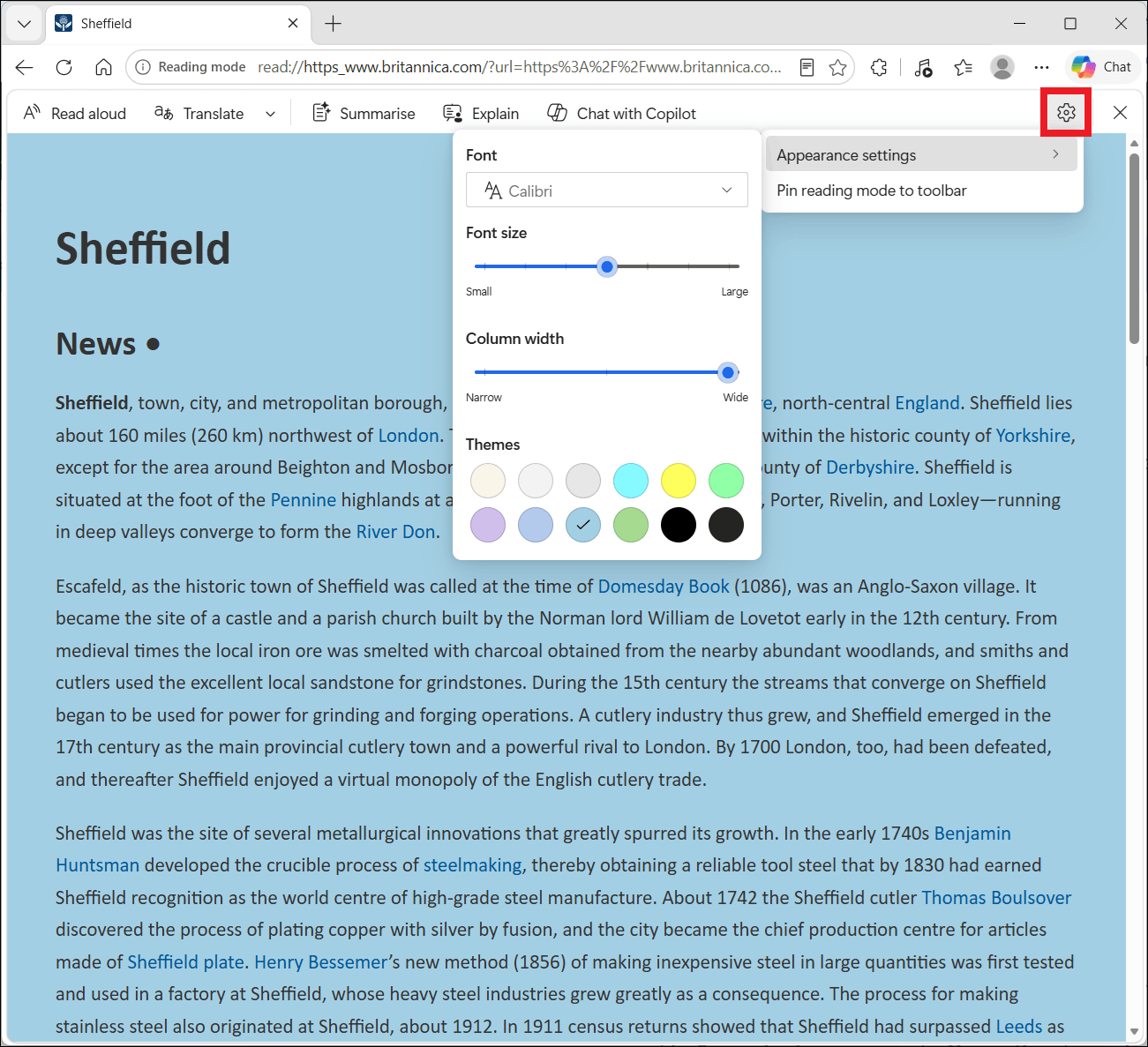
Reading view toolbar in Microsoft Edge

You can now select Read Aloud to load the reading toolbar.

When you open Read Aloud, the document will automatically start reading from the beginning of the current page.

The text not being read out will automatically be dimmed.

Playback controls are now available in the centre of the Immersive Reader toolbar:
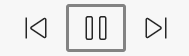
Playback controls in the immersive reader toolbar in Microsoft Edge

You can also scroll down the page and line up some text to the top of the window. The text will pause as you scroll, and will begin reading back from the top of the window when you stop scrolling. Or you highlight a section of text and right click on your mouse and choose 'continue to read aloud from here'.

The appearance of the reading toolbar in Edge is very similar to the reading toolbar in Microsoft Word.

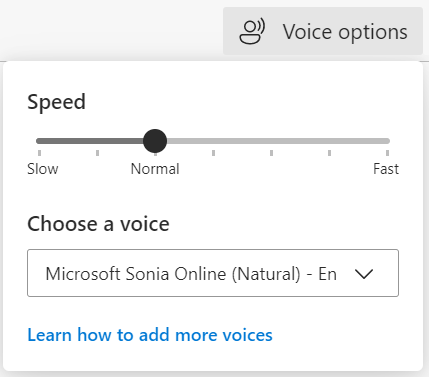
The only major difference is the ‘settings’ button, which in Edge is called Voice options. When you click on Voice options button, the following menu will load:
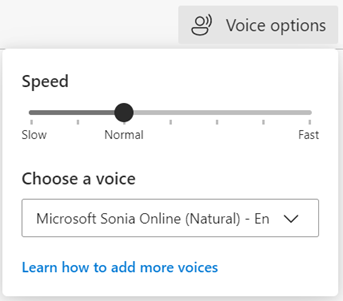
The voice options/settings menu in Microsoft Edge

In this menu you can adjust the speed and voice to your preferences.

Using Read Aloud

If you would prefer to have text read out loud from the webpage view rather than using Immersive Reader, you can use Read Aloud instead. There are a couple of ways with how you can access this. One option is to press on the More actions button in the address bar, and select Read Aloud.

image showing the more tools and read aloud option in the Edge address bar

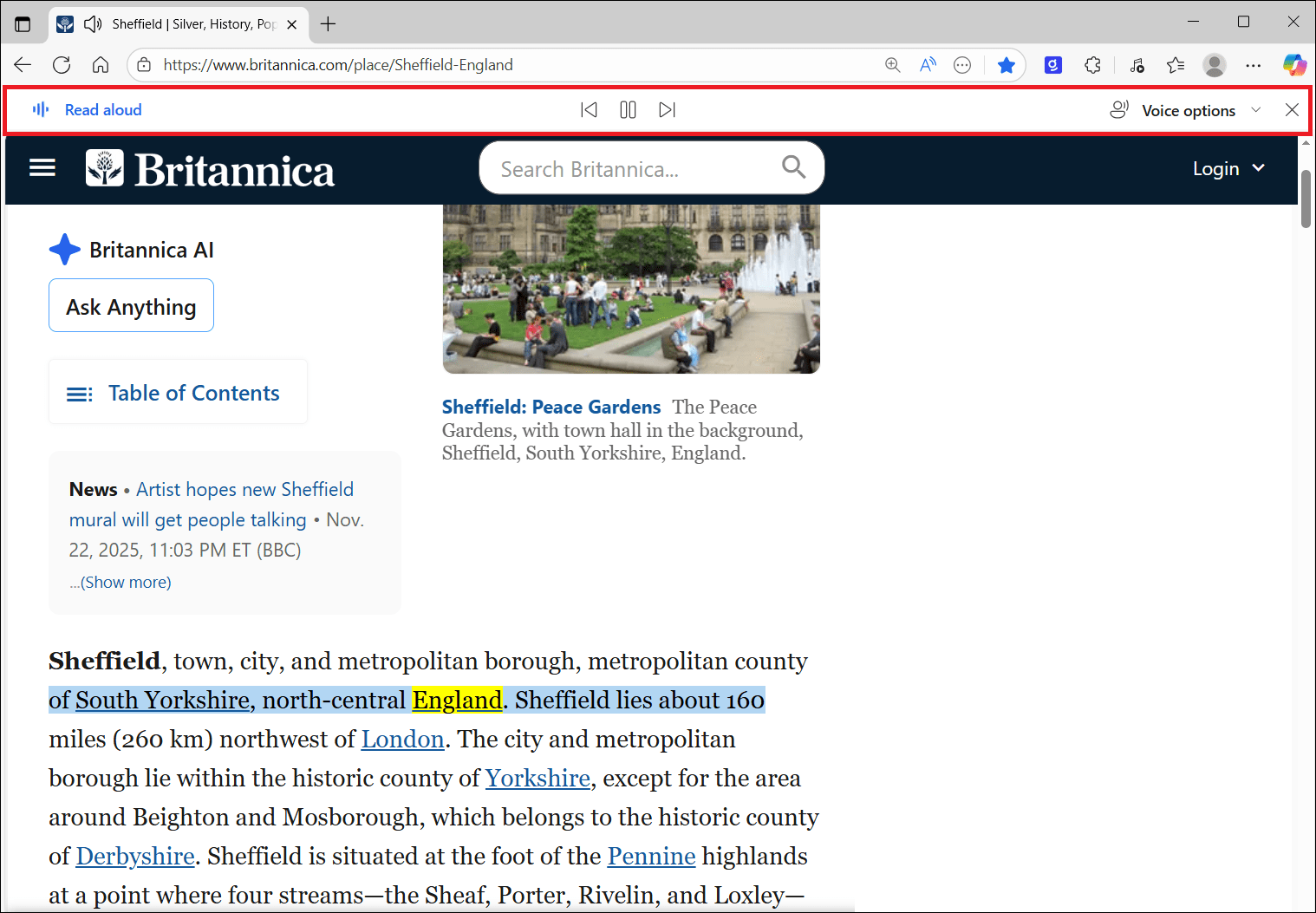
A Read Aloud toolbar will open across the top of the webpage, and it will automatically begin reading out text on screen.  The text will be highlighted as it is spoken, so that you can track along with it. You can use the buttons on the Read Aloud toolbar to pause reading, along with changing the voice and reading speed.

image showing the read aloud toolbar and text being highlighted as spoken

If you want to begin reading text from a specific point, there is an alternative way to access Read Aloud.

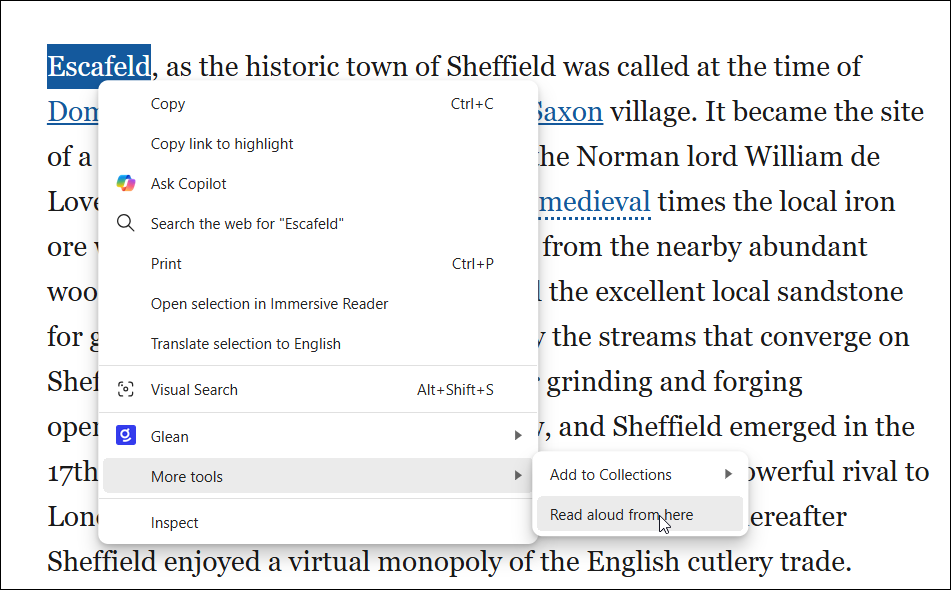
To do this, double-click to select the first word you want to start reading from, and then right-click to open the menu. In the menu go to More tools, then select Read aloud from here.

image showing how to select the read aloud from here option

Once again, the Read Aloud toolbar will open across the top of the screen, and it will begin to read out loud starting from the word that you selected.

Reading back a PDF in Microsoft Edge

You can also use the Read Aloud tool in Edge when viewing a PDF.

The Immersive Reader toolbar is not available when viewing a PDF. However a Read Aloud button is available on the toolbar.

Read aloud option on a PDF toolbar

Select the read aloud button or press Ctrl + Shift + u to load the Read Aloud toolbar.

The toolbar will load and readback will automatically begin at the start of the document.

screen shot of read aloud with highlighting in pdf

The current line is highlighted as the text is read back, and the rest of the text is dimmed

The read aloud toolbar contains an area for playing, pausing, rewinding, and fast forwarding the playback

Payback buttons for read aloud in Microsoft Edge


Use the voice options button on the right to customise the playback. Pressing Voice Options will load this menu:

The voice options/settings menu in Microsoft Edge

On this page you can change the reading voice and speed. By default pressing Read Aloud or the play button begins playback at the top of the page.

If you scroll down the page, the readback will pause. When you stop scrolling, the readback will resume at the first visible line in the document.

Another way to choose a new starting point is to: press Read Aloud to start playback, press the pause button on the toolbar, now select the text where you want the readback to begin. Right-click and select ‘Continue to read aloud from here’.