Menu options

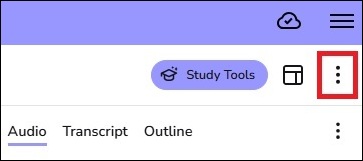
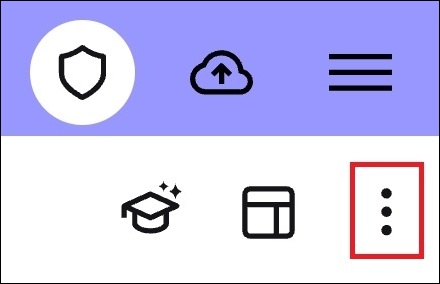
There is a hidden menu of options under the 3 dots in the top-right corner of the screen in both the web and mobile apps.  You will see different menu options depending on whether you are using the web or mobile application, and whether you have imported any PowerPoint slides into the event and named it.
​
screenshot of where the 3 dots menu is located
3 Dots menu on web app
screenshot of where the 3 dots menu is on mobile app
3 Dots menu on mobile app

Menu examples

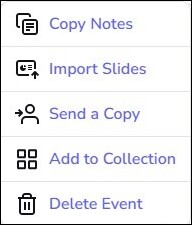
screenshot of menu before importing slides

Web app

Pre slides imported

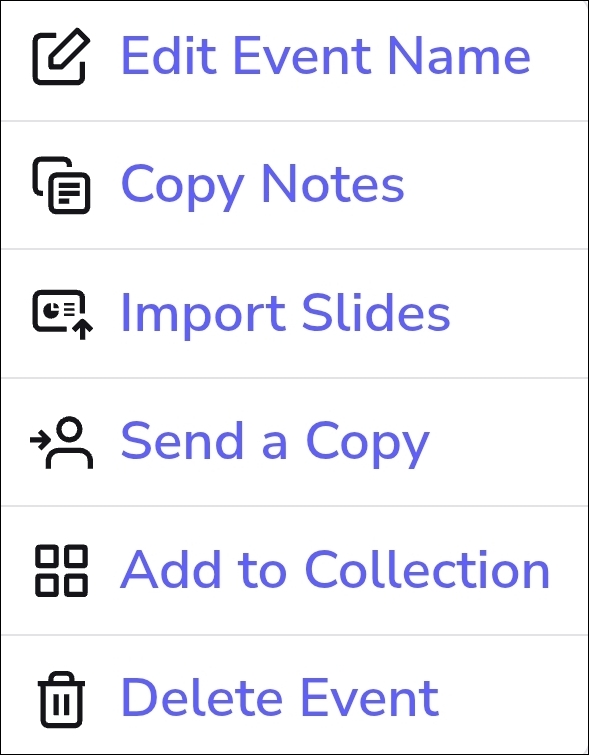
screenshot of menu after importing slides

Web app

After slides imported

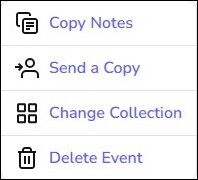
screenshot of menu on mobile app before adding slides and naming event

Mobile app

Pre naming and slides


Copy Notes will copy text in your notes feed to the clipboard, so these can be pasted into a different app.

Import Slides will let you add new slides to the recording or replace any that are already present.

Send a Copy of the recorded event to another Genio user.

Add to Collection will enable you to place the recording into a collection group to help with the organisation of recordings.

Delete Event will remove the recording, associated notes and labels from your Glean account permanently

Edit Event Name is where you will name your recording on the mobile app. 

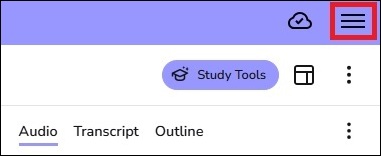
3 Line menu

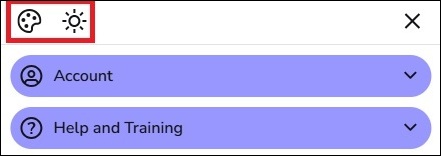
There is an additional menu that is located on the top right of the screen above the 3 Dot menu.  The three line menu allows you to adjust the colour scheme and turn on the dark mode. You can also review your account details and access training resources.

screenshot of the location of the 3 line menu
screenshot of the colour them and dark mode icons