Searching and Transcription


To further help with finding specific information in your recording, you can create a transcription of the audio.
Press on Transcript then press the Transcribe audio button. You can then select a language and press the Transcribe Audio button once more to generate the transcript.


You can select and highlight text in the transcription to copy to the notes feed.
Select the text you want to copy across and then press on the Post button that appears. The text will be copied into the correct position in the Notes panel.

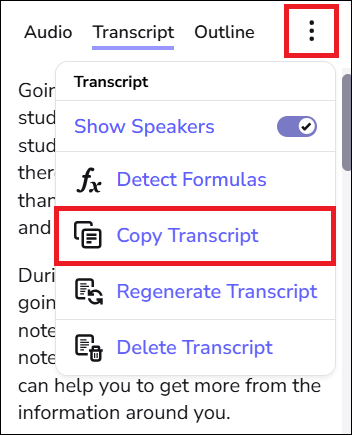
You can create a full copy of the transcript to paste into another application such as MS Word.
With the transcript open, press on the three dots menu, and then choose Copy Transcript.
A copy of the text will be made and stored in the clipboard (computer memory). Just use the paste function in the application you want to copy it to.
From this menu you can also regenerate or delete the transcript, and you have options to show or hide headings, different speakers and timestamps in the transcript.