Annotating a mobile recording

Once you have started to record you can annotate the event using various tools that can highlight and embellish important sections. These include:

Adding a note
Labels
Camera
Further options menu 
Definitions
Tasks
Scribbles


Adding a note

Using the text box at the bottom of the screen (where it says add text) you can type notes that will be displayed in your notes display list with a time stamp under the PowerPoint slide. Just type the note and press on the post icon.

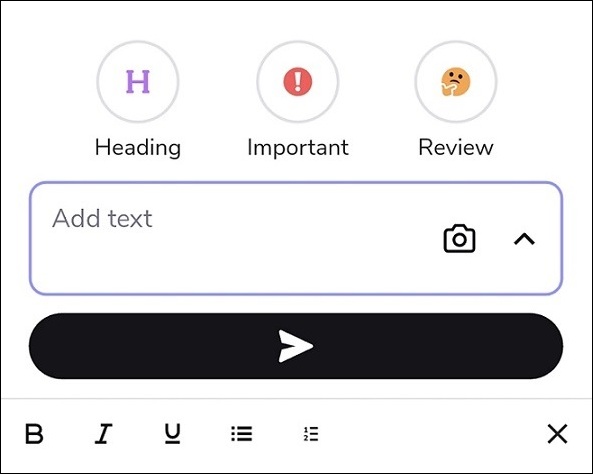
screenshot of where to type a note and how it will be displayed
screenshot of the add text box with formatting options displayed underneath

When you click into the 'add text' box you will notice that formatting options will pop up underneath. These options will allow you to add basic formatting to your text.   

Labels

You can add labels  to highlight sections of the recording. These can be important, review or (sub) heading. Here is an example of using the important label. 

Labels are also time stamped to match the recording.
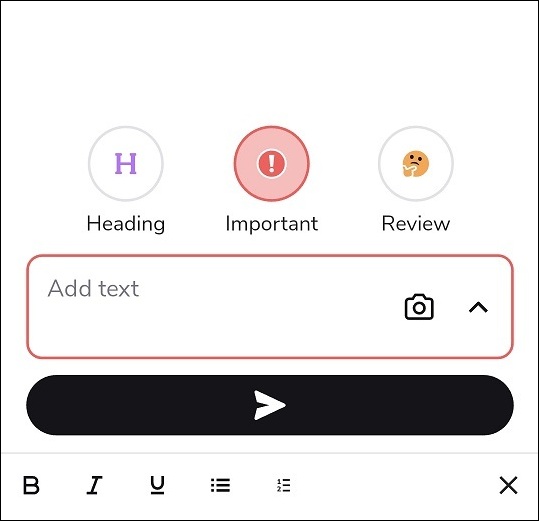
screenshot of typing a note linked to an important label
screenshot of posted important label and note

Camera

You can click on the camera icon in the add text box to take pictures using your camera.  These will then be added to your notes display with a time stamp. 

partial screenshot of text box including the camera icon

Further annotation options

If you press the up arrow on the right side of the add text box you will see the additional annotation options.

partial screenshot of menu of additional annotation options from pressing the up arrow

Definitions

You can use definitions for quick access to Wikipedia for an overview of any subject you are unsure of. The posted definition will be timestamped to sync with the recording.

screenshot of the search definitions text box
screenshot of definitions search results
screenshot of posted definition with time stamp

Tasks

You can create tasks at any point within a recording.  Sometimes it can be helpful to highlight part of a lecture when an assignment is discussed or explained.  Tasks can also be used to set yourself reminders relating to part a lecture.  Tasks are timestamped and there is also a tick box that you can use when the task is completed.  All tasks across all recordings are listed under the Task tab on the homepage of the web application.

screenshot of creating a task
screenshot of posted task with tick box

Scribble

If you prefer to make free hand notes, or don't like typing on a mobile device, you can scribble on your mobile or tablet to take notes. Text notes can be edited using colours, shapes and highlights. When posted they are inputted into the notes display as an image with a timestamp. 

example of using the scribble tool's interface
screenshot of posted scribble with timestamp


Slide annotation

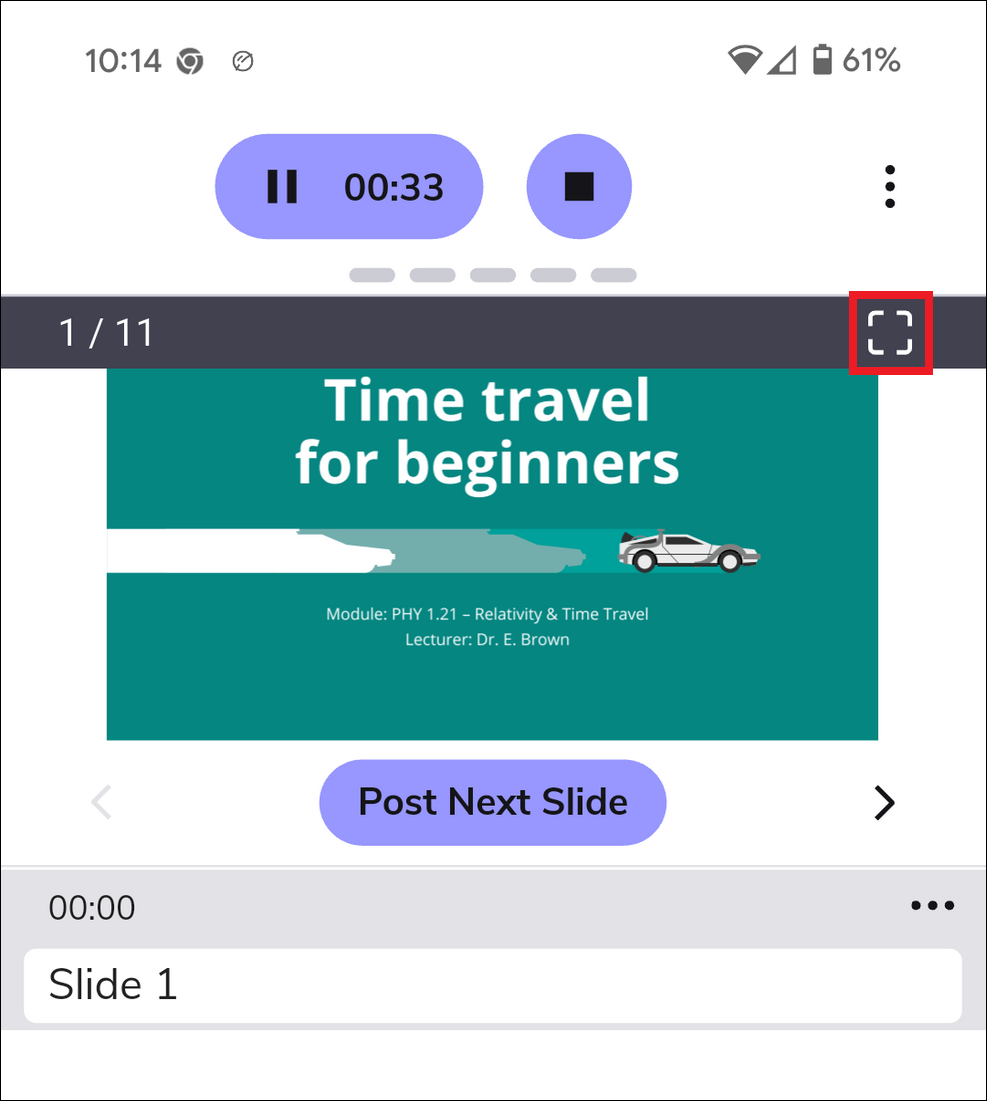
You can annotate or draw on top of any slides that have been added into your recording.  You also have an option to search slides for a keyword.  To begin annotating a slide, tap on the slide you wish to annotate.  A toolbar will appear across the top of the slide, click on the maximise button to the right of this toolbar.

image showing the toolbar at the top of a selected slide

This will change the screen view.

Whilst in this view, you can use the three buttons across the bottom to, from left to right -

image showing slide toolbar options including thumbnail view, reading mode and search

  • Show a thumbnail selection of all slides
  • Convert the slide into a text only reading mode
  • Search slides for a keyword.

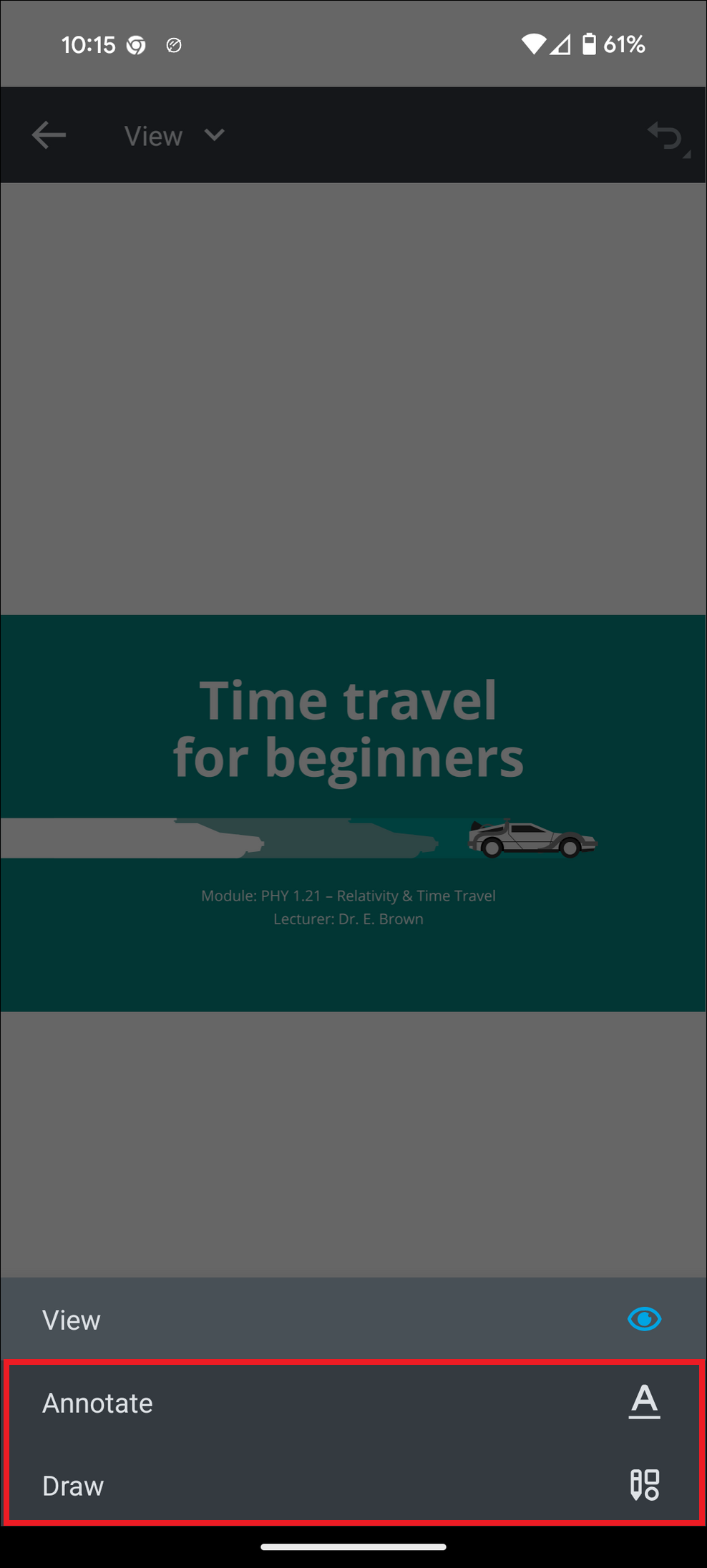
For now, click on View to access the annotation options.
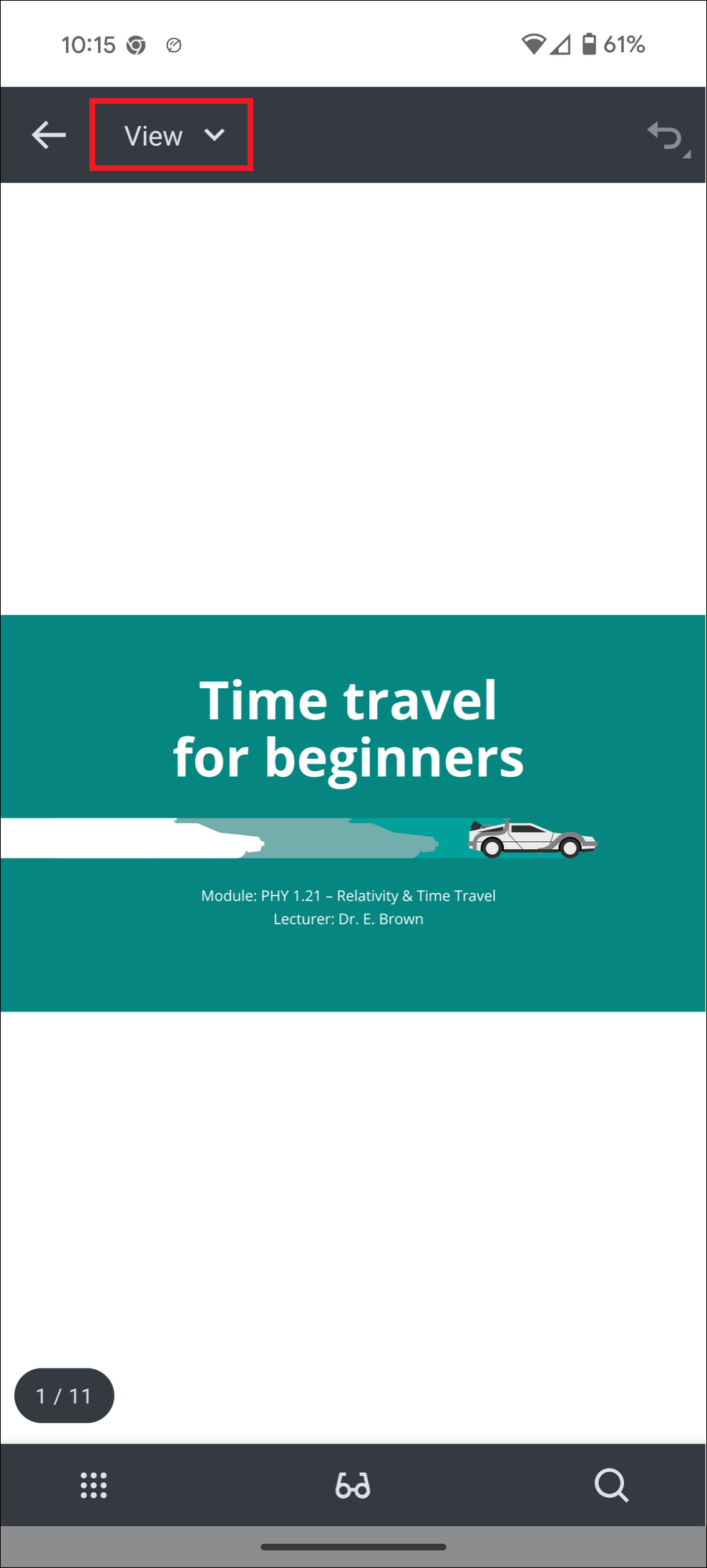
 

image showing the slide view options
image showing the option to either annotate or draw on the current slide

You can choose to select either Annotate or Draw.

Selecting Annotate will provide options for typing / writing on the slide and highlighting / underlining text
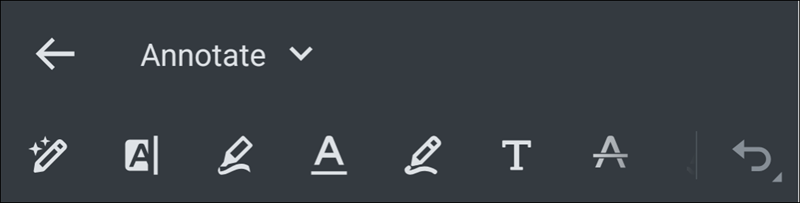
image showing the annotate tools

Selecting Draw will provide options for drawing shapes. There is also an erase tool
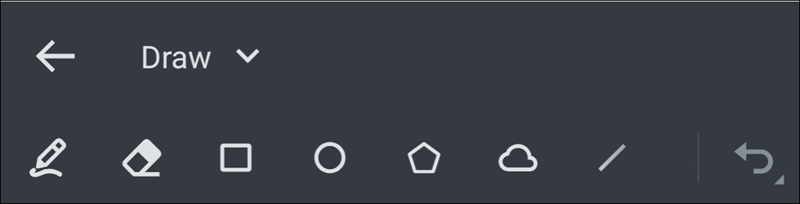
image showing the draw tools